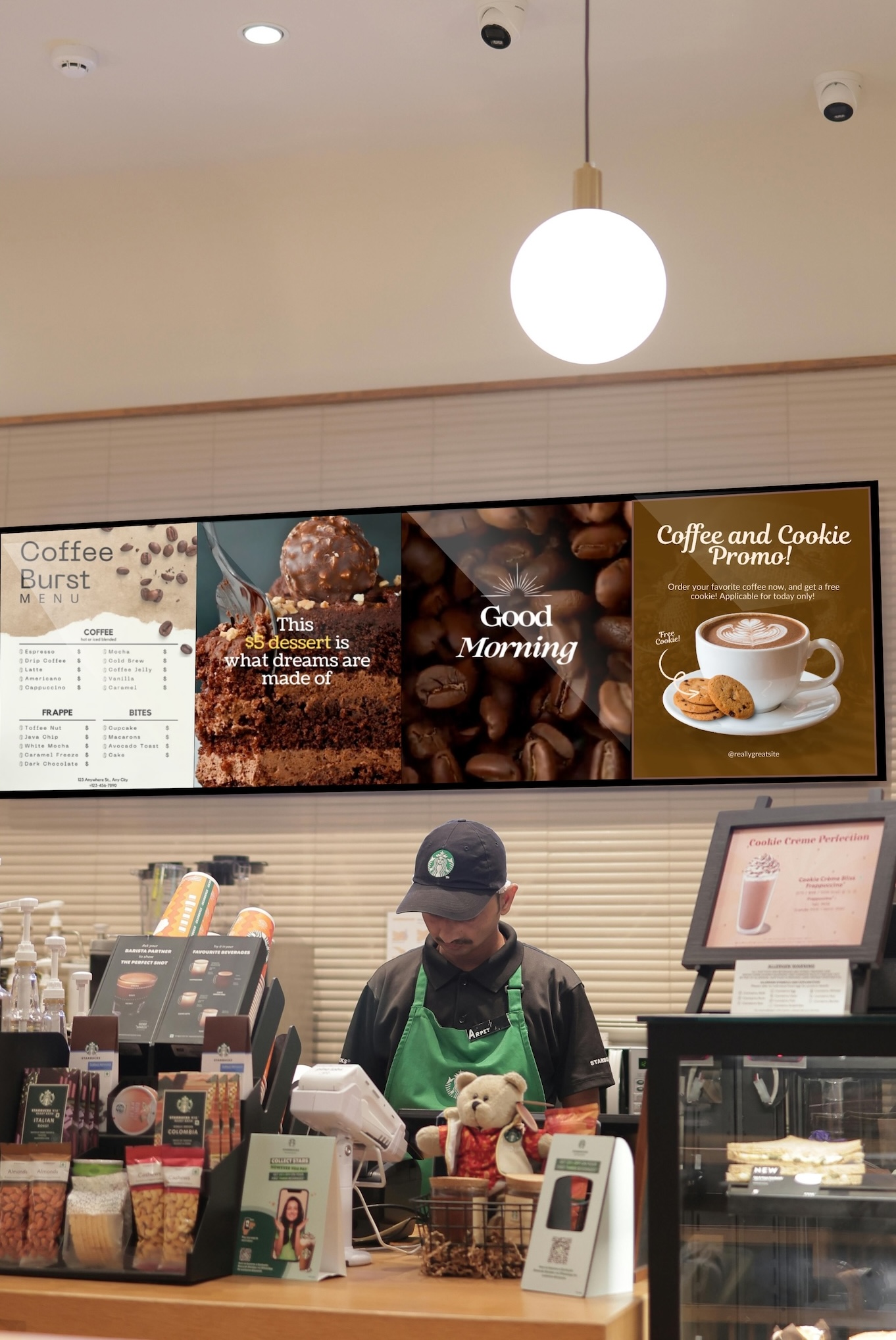
Create an account at: https://app.buzzblender.com
1. Log in to the BuzzBlender Admin panel. First things first, log in to your BuzzBlender account and head over to the main page.
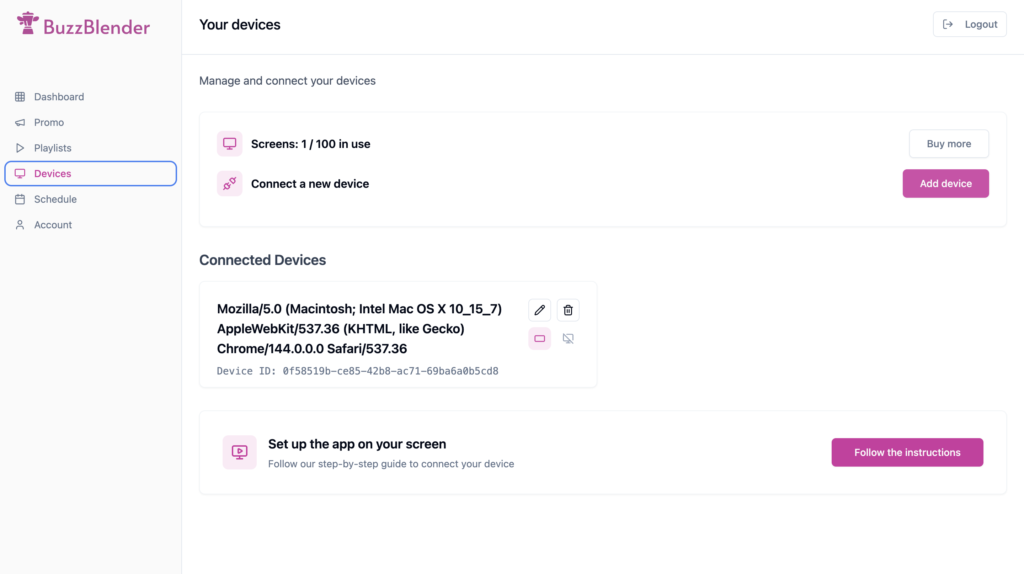
2. Connect your device to the admin panel.
- Android, LG or Samsung TVs: Search for Buzzblender in your TV’s content store and download the app.
- Apple TV: Open a browser and go to https://play.buzzblender.com
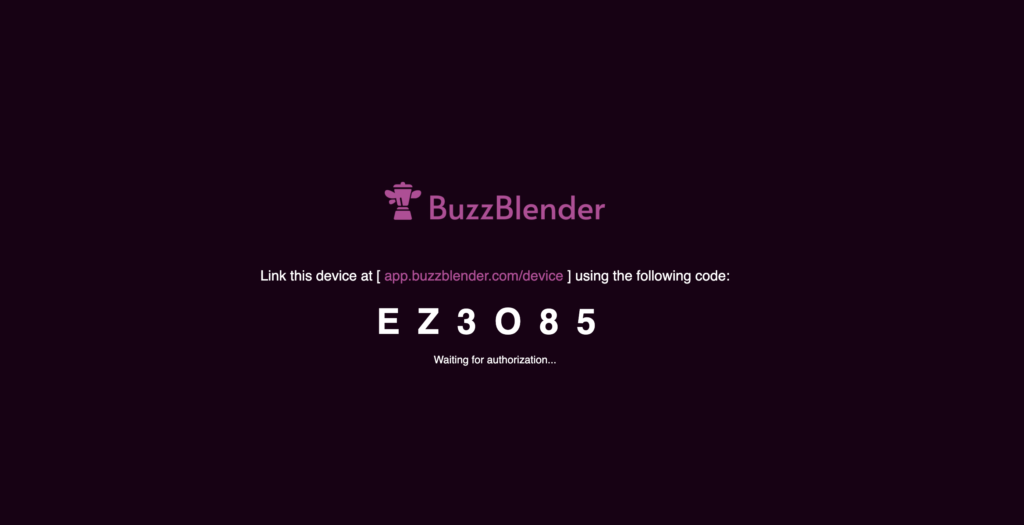
3. Open the Buzzblender app on your TV, or open a browser at Apple TV with url https://play.buzzblender.com
4. Enter the access code shown on the TV in your admin panel here:https://app.buzzblender.com/device
Here is the article with detailed instruction how to connect a device.
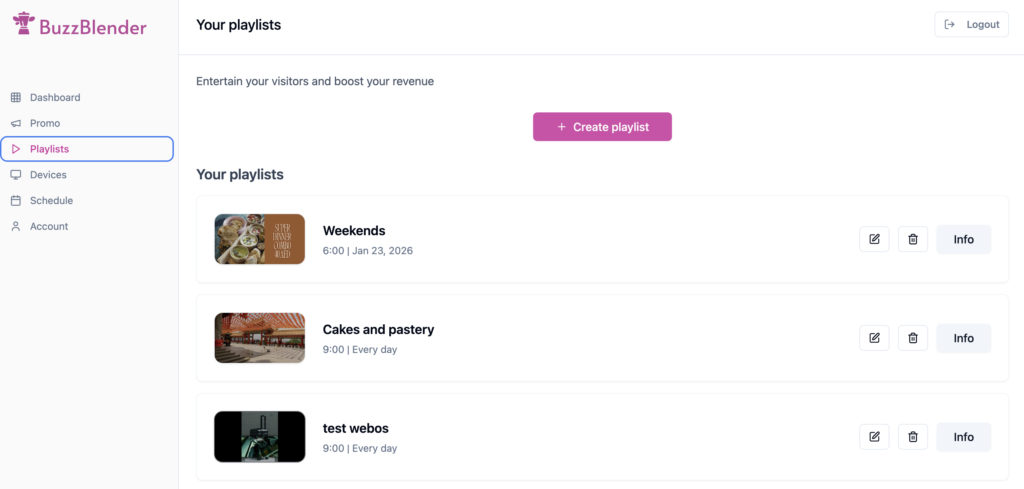
5. Create a playlist. https://app.buzzblender.com/playlist/new
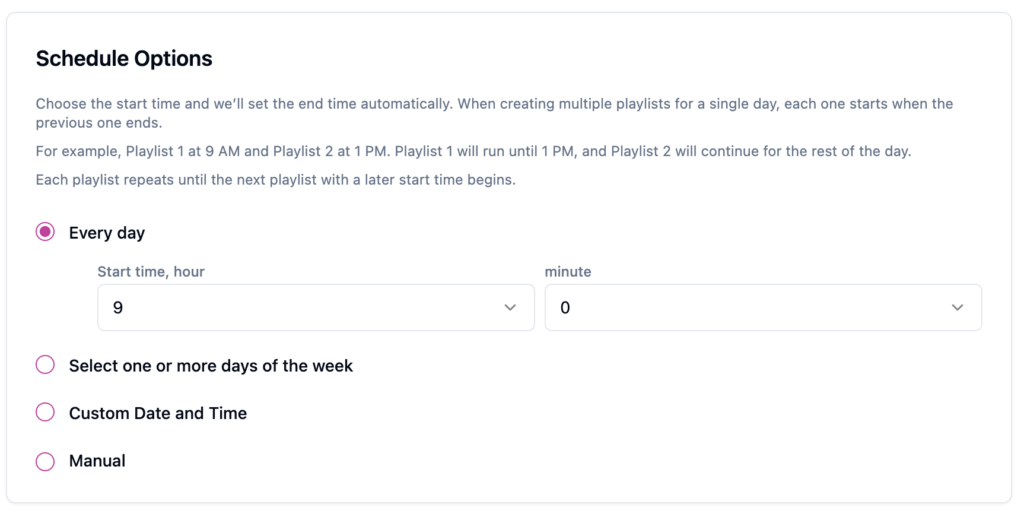
Select scheduling options.
Lunchtime? Play “Happy Hour” deals.
Evenings? Highlight your drink specials after 6 PM.
Choose a start time, and the end time will be set automatically.
When creating multiple playlists for the same day, each playlist starts when the previous one ends.
Example:
Playlist 1 starts at 9:00 AM, and Playlist 2 starts at 1:00 PM. Playlist 1 will run until 1:00 PM, and Playlist 2 will continue for the rest of the day.
Each playlist repeats daily until another playlist with a later start time begins.
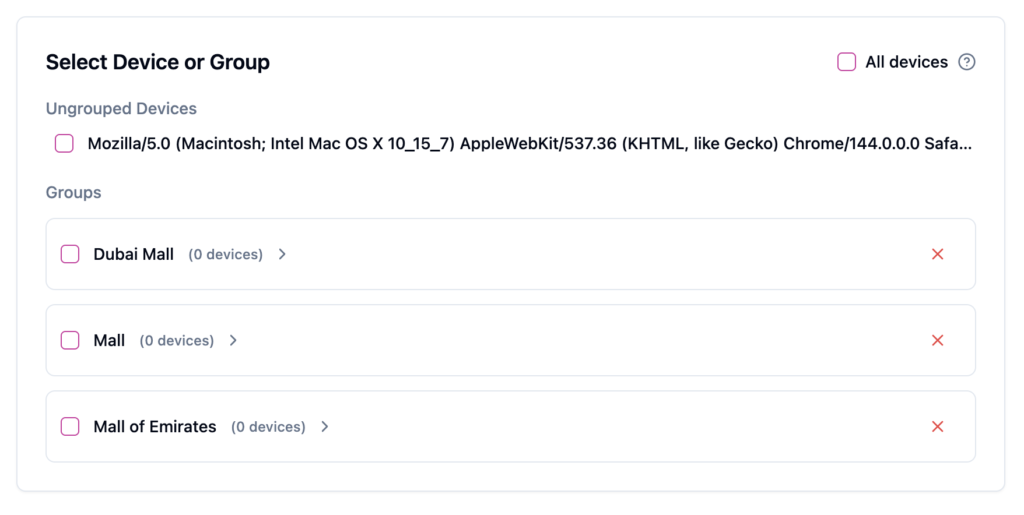
6. Select a device. Have multiple screens? No problem! You can:
Play the same playlist on all devices.
Or, tailor content for specific screens.
Select ‘All devices’ if you want to automatically connect all new devices to this playlist.
7. Select the media. Upload your own photos or videos. Need something snazzy? Canva is a lifesaver for creating cool promotional materials or menus in minutes.
That’s it . The playlist will start playing automatically.
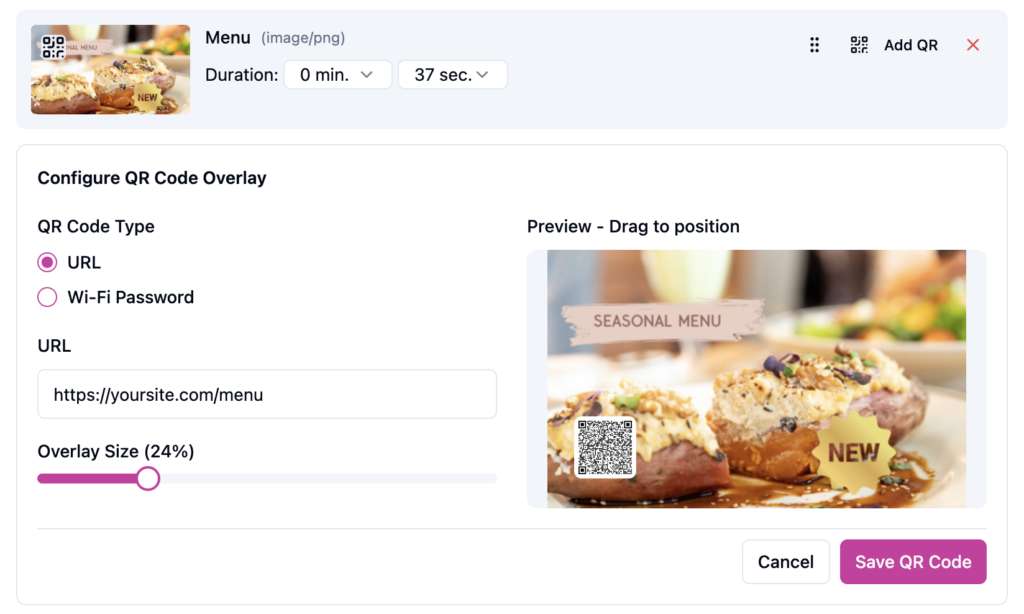
8. Measure Campaign Effectiveness. Want to know if your promo is working? Add a QR code to track your campaign’s performance.
• Upload your promo.
• Insert a link.
• Choose where the QR code will appear on-screen.
Now you’re in full control of the data. 💡
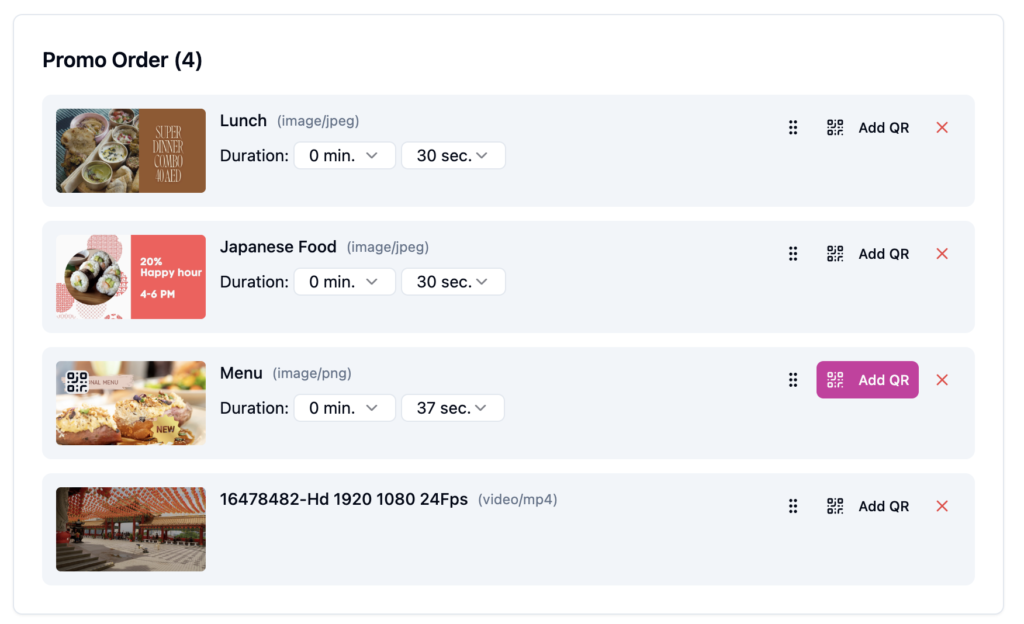
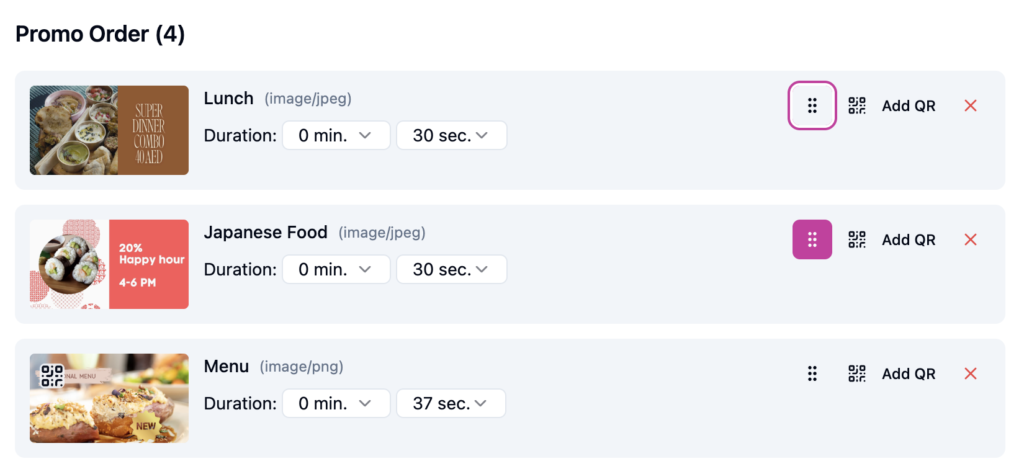
9. Organize with Drag-and-Drop
Arrange your playlist elements in the perfect order using a super-simple drag-and-drop feature. Easy peasy!
10. Sit Back and Let It Roll
Ta-da! 🎉 Your playlist will now automatically display to your customers at just the right time.
That’s it! Creating playlists has never been this fun (and profitable). Ready to give it a try? Head over to BuzzBlender and start boosting your business today! 🚀
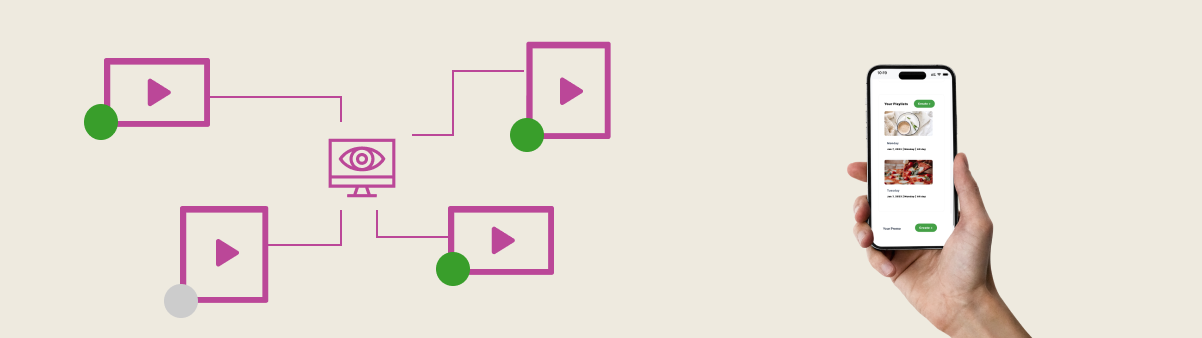
Remember, you can do everything right from your mobile phone! 📱


Leave a Reply